
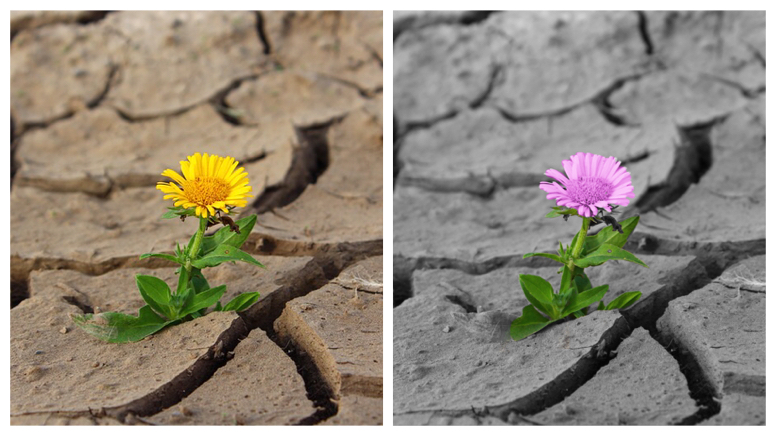
Black & white photos with a pop of color are artistic and a great way to draw attention to a focus point. These mini works of art can be created in just minutes. And with by using your phone or tablet, these color effect photos are easier than ever to create. Although there are several different apps available to do create a pop of color effect, one that works very well is called Selective Color Effect. This is an iOS app and can be used on both iPhone and iPad.
Some of the app’s main features:
- Splash grayscale or any other color on your photo.
- Multi touch zoom in/out and move.
- Configurable brush size and splash opacity.
- Magnifying glass for precise editing.
- Crop & resize images.
- Save photos inside the app for future editing.
 |
Here’s how the app works.


- Install the Selective Color Effect app and then open it.
- Click Library so the app can find the photos on your device.
- The first time you click Library, you’ll see a message: “Color Effect” Would Like to Access Your Photos > Select OK.
- Once you select and add your photo, it converts to grayscale removing all color.
- From the bottom menu, select either Color or Recolor to add a pop of color effect.
- Use the Pan & Zoom tool from the bottom menu to have precise brush strokes.
- When you make a mistake, simply click the left undo arrow.
- Once you're finished with your creation, click Save. You can add your new color effect photo to your camera roll or share it via various social media sites.

Adding a pop of color effect to your photo to highlight and focus on the most important parts of it has never been so fun! The possibilities are endless.


Note: Because this is a free app, you will see some ads. The good news is the ads are not animated and do not interfere while you’re working on your creation.
Some web-based options for adding color effect to your photos:
- Fotor Color Splash http://www.fotor.com/features/color-splash.html
- iPiccy http://ipiccy.com/ft/color-splash
- FotoJet https://www.fotojet.com/features/photo-editor/color-splash.html


